Local Repository Server (NGINX)
Configure the monitoring server as a local HTTP repository server to mirror and serve NGINX packages for the internal network, reducing external bandwidth and ensuring package availability.
Repository Distribution Topology
1. Install & Configure NGINX
Initialize the HTTP server that will host the repository files. This server will act as the delivery gateway for all internal clients.
install nginx:
sudo apt update && sudo apt install nginx -y
verify service:
sudo systemctl status nginx
2. Directory Scaffolding
Create a structured directory for repository mirroring and GPG key storage. We use the /mirror path for logical isolation.
create directories:
sudo mkdir -p /mirror/ubuntu-additional/{master-sync,gpg}
3. GPG Key Acquisition
Acquire the official NGINX GPG key to verify the integrity of the mirrored packages.
download gpg key:
sudo wget -O /mirror/ubuntu-additional/gpg/nginx.gpg https://nginx.org/keys/nginx_signing.key
4. Repository Mirroring (apt-mirror)
Install and configure apt-mirror to sync the NGINX repository for Ubuntu Jammy (22.04).
Install apt-mirror
sudo apt update && sudo apt install apt-mirror -y
Edit mirror.list
Modify /etc/apt/mirror.list to set the base path and target the NGINX repo. Important: Disable all default Ubuntu base repositories to save space and focus only on NGINX.
sudo nano /etc/apt/mirror.list
Configuration content:
############# config ##################
# set base_path to our master-sync directory
set base_path    /mirror/ubuntu-additional/master-sync

set mirror_path  $base_path/mirror
set skel_path    $base_path/skel
set var_path     $base_path/var
set postmirror_script $var_path/postmirror.sh
set defaultarch  amd64
set nthreads     20
set _crypto_load 1

############# repo ####################
# Mirroring NGINX for Jammy
deb [arch=amd64] http://nginx.org/packages/ubuntu/ jammy nginx

# Clean up (Optional)
clean http://nginx.org/packages/ubuntu/
Sync Repository
Execute the sync process to download the packages:
sudo apt-mirror
output:
1.5 GiB will be downloaded into archive.
Downloading 292 archive files using 20 threads...
Begin time: Sat May 16 11:18:18 2026
[20]... [19]... [18]... [17]... [16]... [15]... [14]... [13]... [12]... [11]... [10]... [9]... [8]... [7]... [6]... [5]... [4]... [3]... [2]... [1]... [0]...
End time: Sat May 16 11:20:42 2026

0 bytes in 0 files and 0 directories can be freed.
Run /mirror/ubuntu-additional/master-sync/var/clean.sh for this purpose.

Running the Post Mirror script ...
(/mirror/ubuntu-additional/master-sync/var/postmirror.sh)

/bin/sh: 0: cannot open /mirror/ubuntu-additional/master-sync/var/postmirror.sh: No such file

Post Mirror script has completed. See above output for any possible errors.
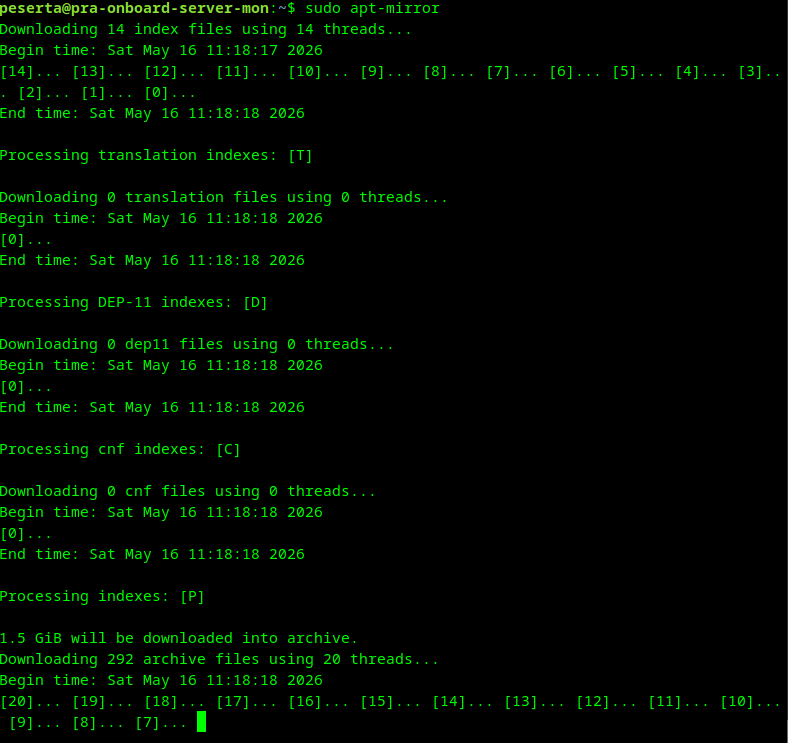
The Post Mirror script error (cannot open ... postmirror.sh: No such file) is expected. This script is an optional hook used for automated post-sync tasks (like running clean-up scripts). Since we are performing symlinking manually, this script is not required and its absence does not affect the integrity of the mirrored packages.
5. Symlink & Serving
Expose the mirrored repository via the NGINX web server by linking the mirror directory to the web root.
symlink to web root:
sudo ln -s /mirror/ubuntu-additional/ /var/www/html/
symlink sync results:
sudo ln -s /mirror/ubuntu-additional/master-sync/mirror/nginx.org/packages/ubuntu/ /mirror/ubuntu-additional/nginx
6. Enable Directory Listing
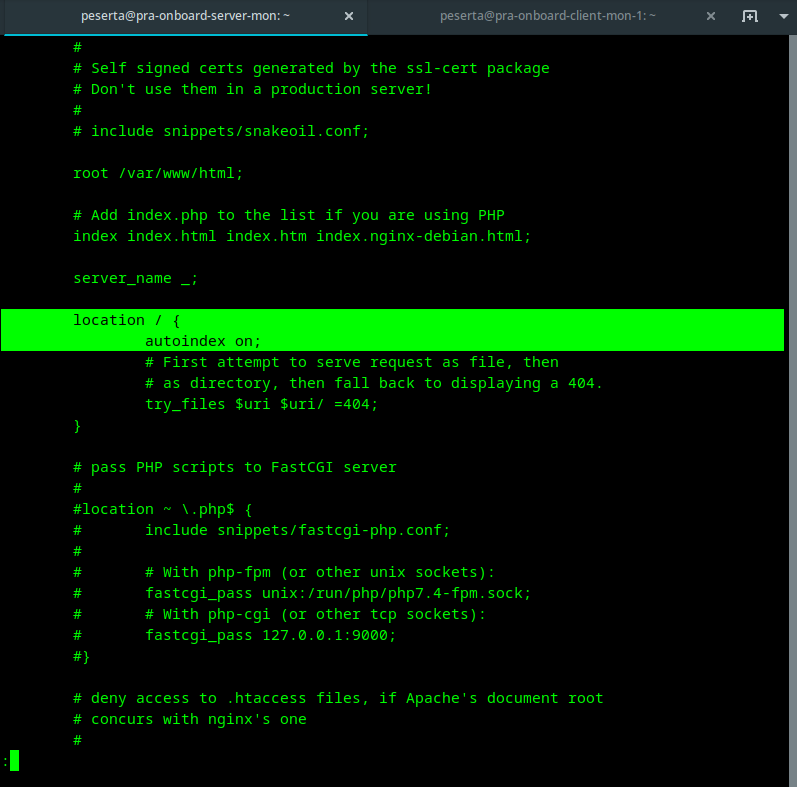
By default, NGINX will return a 403 Forbidden error if you attempt to browse a directory without an index.html. You must enable autoindex to allow clients to browse the repository:
edit default site:
sudo sed -i '/location \/ {/a \\t\tautoindex on;' /etc/nginx/sites-available/default
restart nginx:
sudo systemctl restart nginx
Verify Configuration
Confirm that the autoindex on; directive has been correctly injected into the server block:
grep -C 3 "autoindex on;" /etc/nginx/sites-available/default
7. Access Verification
Verify that the repository is accessible and listing files using curl from a network-connected machine:
verify access (headers):
curl -I http://10.12.12.21/ubuntu-additional/nginx/
output:
HTTP/1.1 200 OK
Server: nginx/1.18.0 (Ubuntu)
Date: Sat, 16 May 2026 04:30:02 GMT
Content-Type: text/html
Connection: keep-alive
verify directory listing:
curl -s http://10.12.12.21/ubuntu-additional/nginx/ | grep -E "dists/|pool/"
output:
<a href="dists/">dists/</a>                                             16-May-2026 11:18       -
<a href="pool/">pool/</a>                                              16-May-2026 11:18       -